The invoice comes from the job
Re-typing the job into an invoice is where things get missed. In robot Plan the lines, the customer and the price are already on the job card.
Invoicing software for electricians
robot Plan is invoicing software for electricians. The invoice comes off the job card in a tap, it has a Pay button on it, and it lands in Xero or QuickBooks without you touching it.
Free to join. Business tools free for 30 days — no card. Built in Sydney by robot, an electrical business.
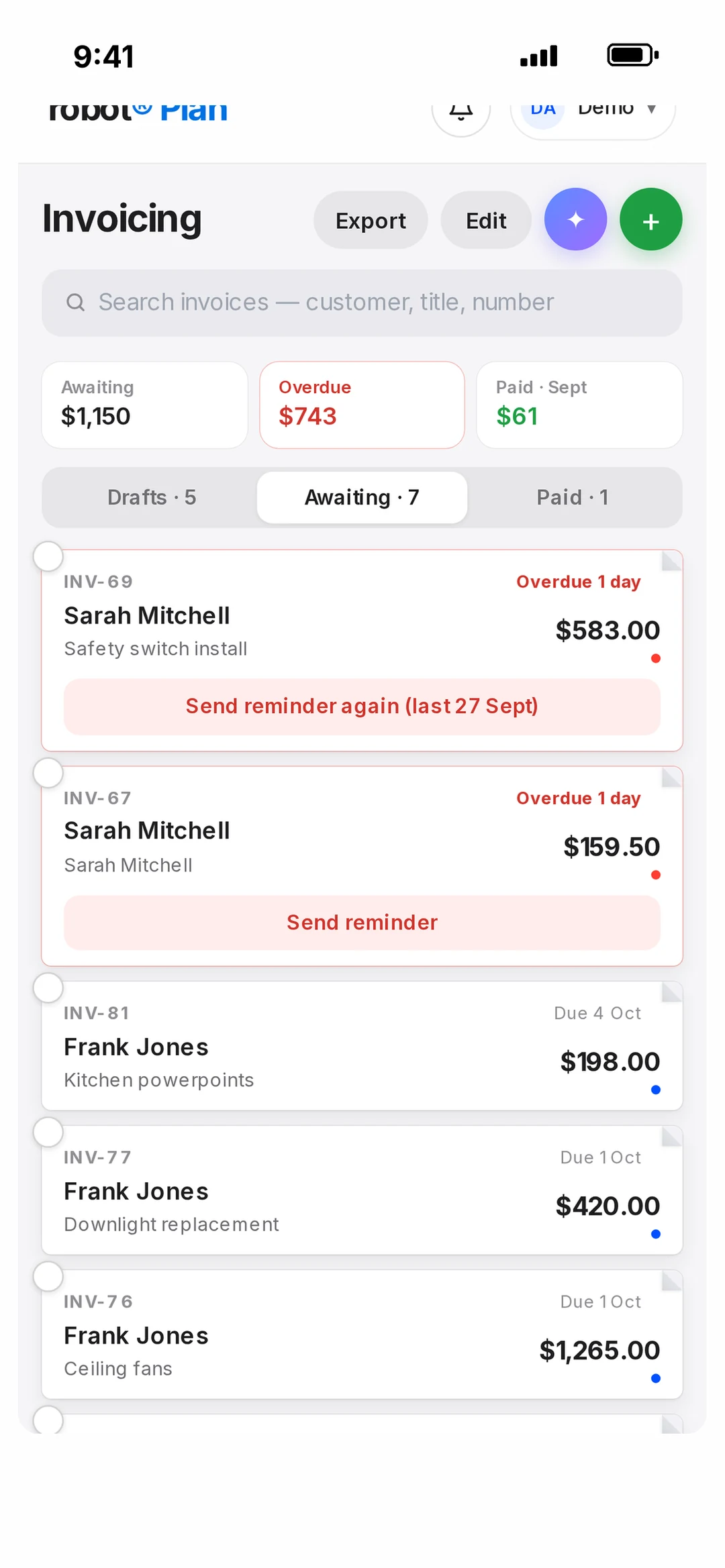
Re-typing the job into an invoice is where things get missed. In robot Plan the lines, the customer and the price are already on the job card.
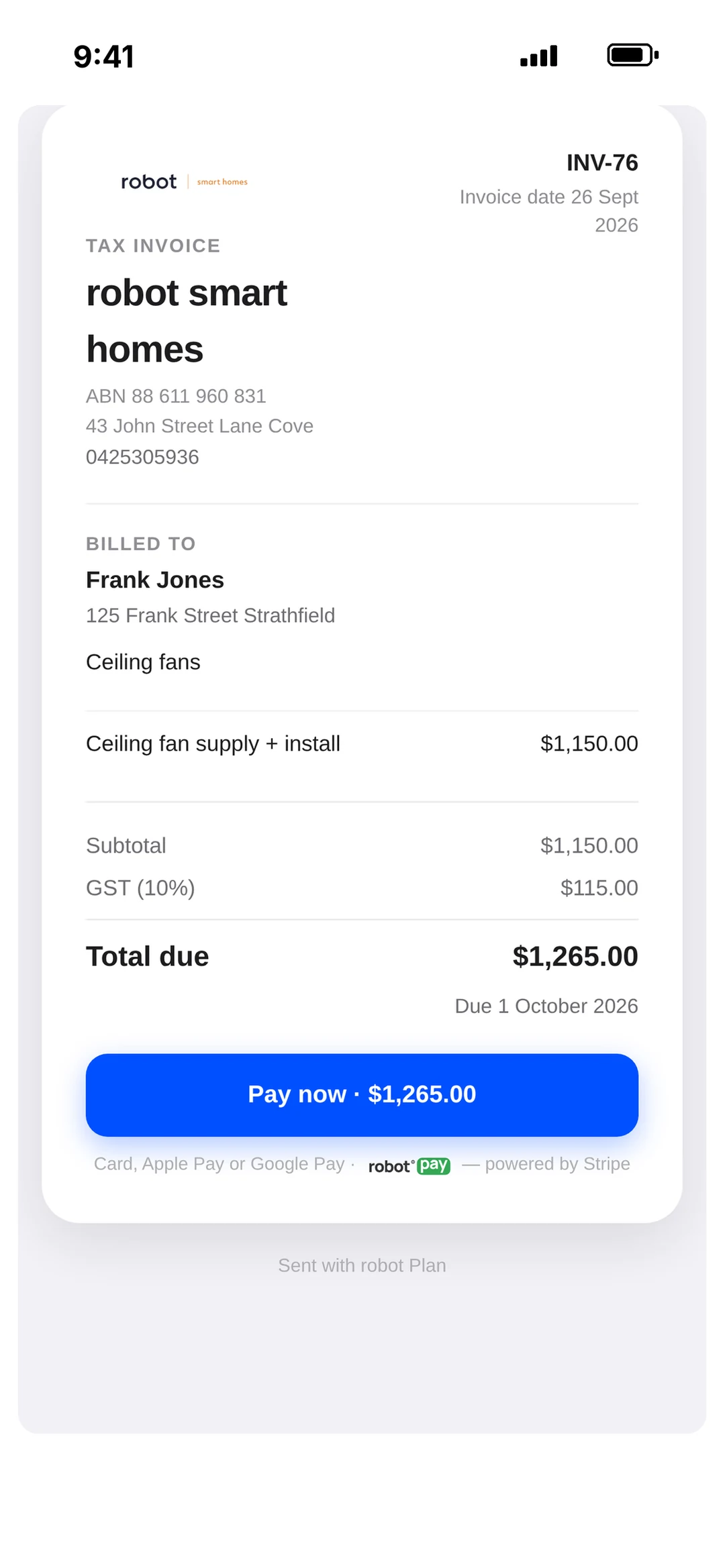
Bank details on a PDF means chasing. Every robot Plan invoice has a Pay button — card, Apple Pay or Google Pay — and a Scan to Pay code you can show on site.
robot Pay needs no card terminal and has no monthly fee: 2.4% + 30¢ per payment.
The customer gets a branded receipt by email and text the moment they pay, and reminders go out on unpaid invoices in your own wording.
Deposits and milestone invoices follow the payment schedule from the quote, so you’re not carrying the job.
Invoices sync to Xero or QuickBooks Online and are marked paid in both. Payments made in your accounting come back as paid.
Works with
 Xero
 QuickBooksStripeApple PayGoogle Pay
 ServiceM8

It’s a tool that turns finished work into a tax invoice, sends it, takes the payment and records it in your accounting. In robot Plan the invoice is created from the job, so the lines are already there.
Every invoice has a Pay button. Customers pay by card, Apple Pay or Google Pay from the text, the email or the PDF, or by scanning a code on your phone on site. They can still pay by bank transfer using the details on the invoice.
2.4% + 30¢ per payment. There’s no terminal to buy and no monthly fee for robot Pay.
Yes, either one. Invoices sync across, payments through robot Pay are marked paid in both places, and payments recorded in Xero or QuickBooks come back as paid.
Yes. Set the payment stages on the quote and an invoice is created for each one when it’s accepted.
Joining is free — the community and all the training cost nothing, and you can make plans and quotes with limits. The business tools are free for 30 days with no card, then it’s one subscription with unlimited users. Current pricing is on the pricing page.
Book a call
Book 15 minutes with the robot team and we’ll show you an invoice paid on a phone, start to finish.
Pick a day
Pick a time
Checking Jacob’s calendar…
15 minutes · Jacob calls you · times shown in Sydney time