How to chase overdue invoices
See what’s overdue at a glance and send a friendly reminder in one tap.
Overdue invoices jump to the top of your list in red, with a reminder button right on them. Nothing goes to the customer until you confirm.
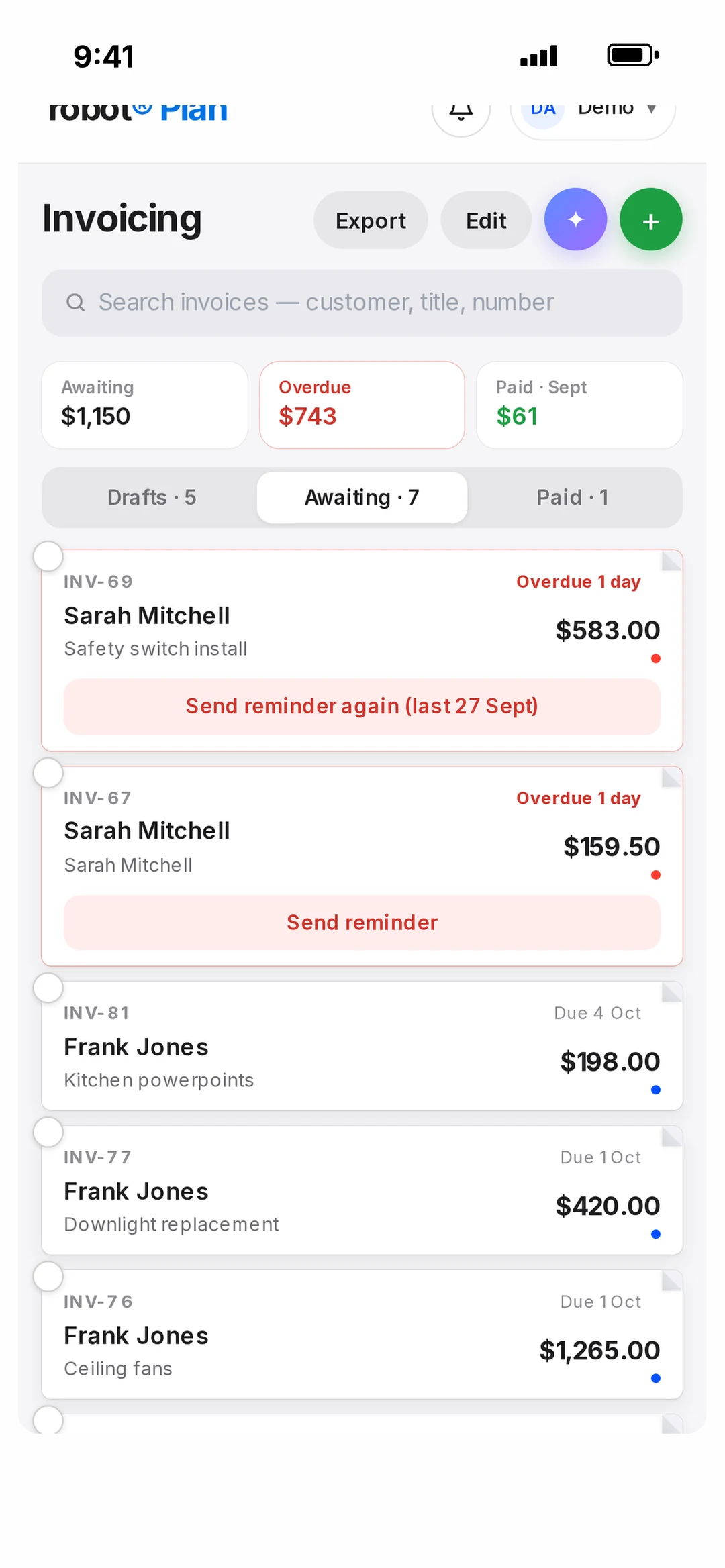
See what’s overdue
Go to Work → Invoicing. The three boxes at the top show what’s Awaiting, what’s Overdue and what’s been paid this month. Tap Overdue to show only overdue invoices, then Show all to go back.
An invoice is overdue once its due date passes. Overdue invoices sit at the top of Awaiting with a red outline and say how many days late they are.
Send a reminder
The customer gets a short, friendly email from your business name with a View & pay invoice button. If robot Pay is active they can pay by card straight from the invoice.
- 1On an overdue invoice, tap Send reminder.
- 2Check who it’s going to and the amount, then tap Send reminder to confirm.
- 3The button changes to Reminder sent ✓. Next time it shows when you last reminded them.
Change the wording in Settings → Templates → Invoice reminder.
Get a morning heads-up
Turn on robot AI’s Morning check-in in Settings → Morning check-in. Tick the agree box, pick the time it arrives and what it covers — overdue invoices with amounts, finished jobs not yet invoiced, today’s run sheet and more — and it writes you a short message each morning.
Reminders are sent when you tap the button. robot doesn’t chase customers automatically.
Make paying easy in the first place
- Turn on robot Pay so every invoice has a Pay now button.
- Set clear payment terms in Settings → Invoicing.
- Take a deposit up front on bigger jobs. See deposits and progress payments.