How to schedule jobs on the calendar
See the whole month, drag jobs that need a date onto a day, book the crew, and check the team map.
The Calendar is where you plan your week. You can see every booked job, and every job still waiting for a date sits right under it, ready to drop onto a day.
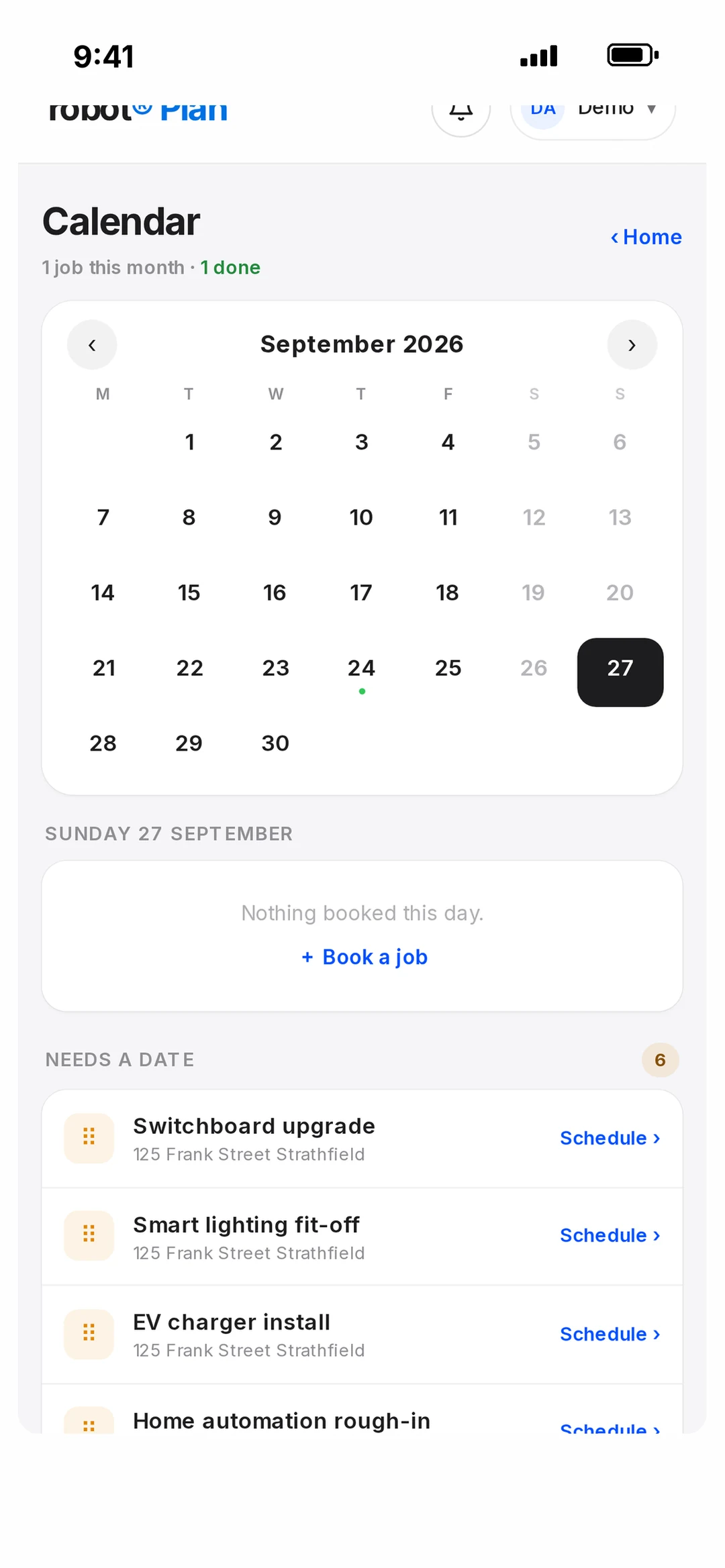
Reading the calendar
Tap Calendar in the bottom bar. You’ll see a month view. Days with jobs have coloured dots, and the key under the calendar shows which colour means what: booked, on site, completed, invoiced or paid. A red dot means someone is double-booked.
Tap a day to see its jobs listed underneath, with the time and who’s on each one. Tap a job to open its job card. Use ‹ › to change months, and Today to jump back.
Book a job that needs a date
Jobs that aren’t booked yet are listed under Needs a date. There are two ways to book one:
- 1Drag it: press and hold the job, then drag it onto a day in the calendar.
- 2Or tap it: tap Schedule › on the job, then tap a day in the calendar.
- 3In the booking sheet, pick the start time and how long it runs for.
- 4Pick the crew. The first person you pick is the main person on the job. You can pick more than one.
- 5Tap the blue Set button to save.
If someone is already booked, on leave or outside their hours, you’ll see a warning. It won’t stop you, so you can still book them.
Jobs that take more than one day
You can book extra days in the same booking sheet, on the job card or on the calendar.
- 1Open the booking sheet (tap Pick a time or Change under Scheduled on the job card).
- 2Tap + Add another visit.
- 3Set each visit’s day, time and crew. Each one can be different.
- 4Tap Save [x] visits.
Your crew gets told
When you book someone onto a job, they get a notification: “You’re booked on [job]”. If you move the job’s time, everyone on it is told the job moved. The person making the change doesn’t get a notification.
If the customer has SMS updates turned on, they also get a booking text. See customer SMS reminders.
See where the crew is (Team map)
- 1On the Calendar, tap the green Map button.
- 2Turn on Share my location if you want to show on the map.
- 3Everyone who shares shows as a pin, with when they were last updated.
Sharing your location is up to each person. Nobody shows on the map unless they turn it on themselves.