Your Home screen, explained
What’s on the Home screen, how to find your work and how to make it yours.
Home is your day at a glance. Jobs, money owed and who’s on the tools sit up top, and everything else is one tap away in the bar at the bottom.
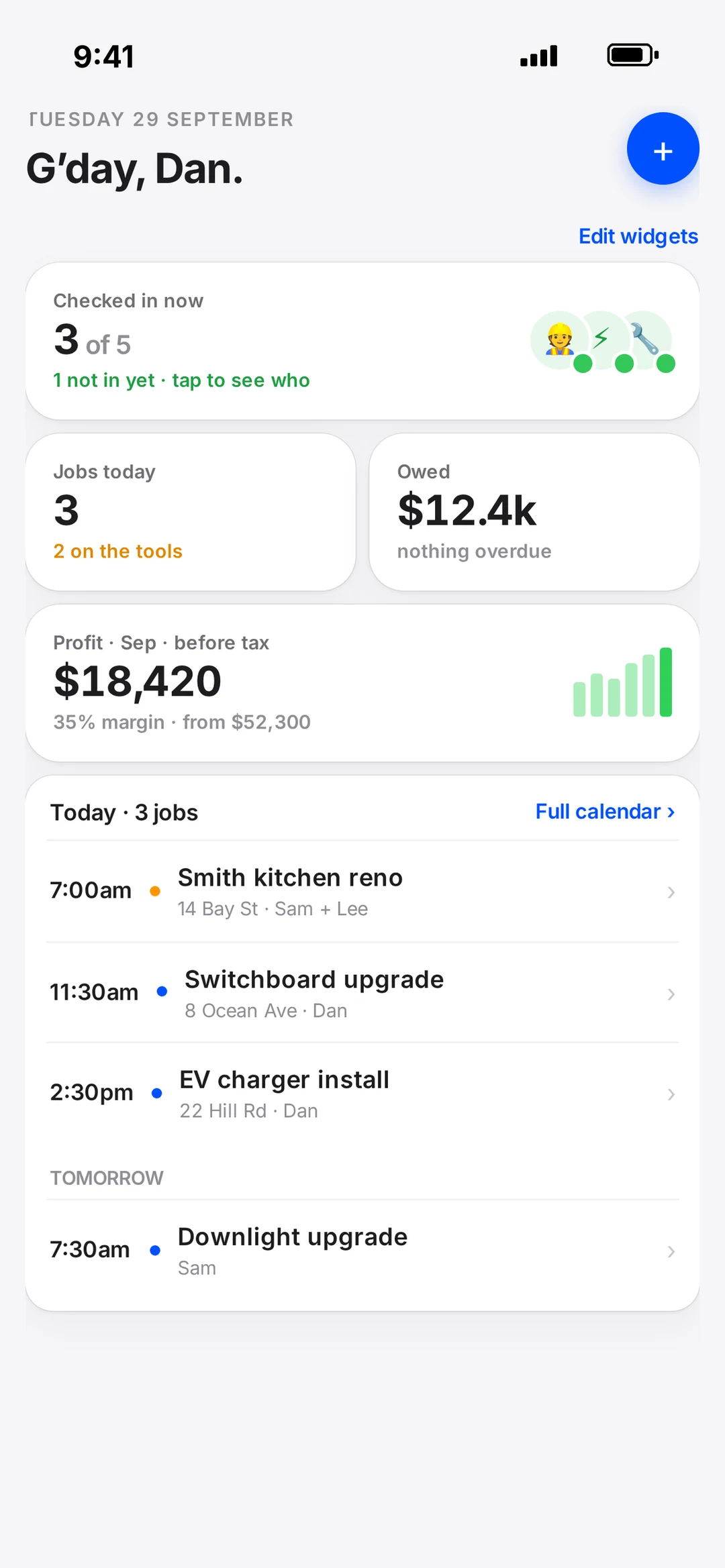
The top of the screen
Home opens with today’s date and a G’day. On the right you’ll find the Start day button (to sign on for the day) and the blue + button.
Tip
Start day and timesheets are covered in Start Day and timesheets.
Widgets
The cards on Home are widgets — things like Jobs today, Owed, Quotes out, This week, Profit this month, Checked in and a calendar. Tap any widget to jump to the detail.
- 1Tap Edit widgets.
- 2Drag ⠿ to move a widget, or tap − to remove it.
- 3Tap Add widget to bring one back.
- 4Tap Done. Your layout is saved just for you.
The bar at the bottom
- Home — back to this screen.
- Work — opens a menu with Plans, Quotes, Jobs, Invoicing, Projects, Customers, Products (your pricing library), Properties, Vehicles, Timesheets, Supplier bills and Profit. What you see depends on your role.
- Calendar — every booked job for you and your crew.
- Chat — team chat.
Good to know
On a computer, the same sections are in the side menu on the left, with Settings at the bottom.
Still stuck?Talk to a real person on the robot team, or ask Sophie any time.