How to see your profit
What you actually kept this month, quarter or financial year, before tax: income, materials, labour and expenses.
Busy isn’t the same as profitable. The Profit page takes the invoices you’ve sent, the materials and labour behind them, and your running costs, and shows what you really kept.
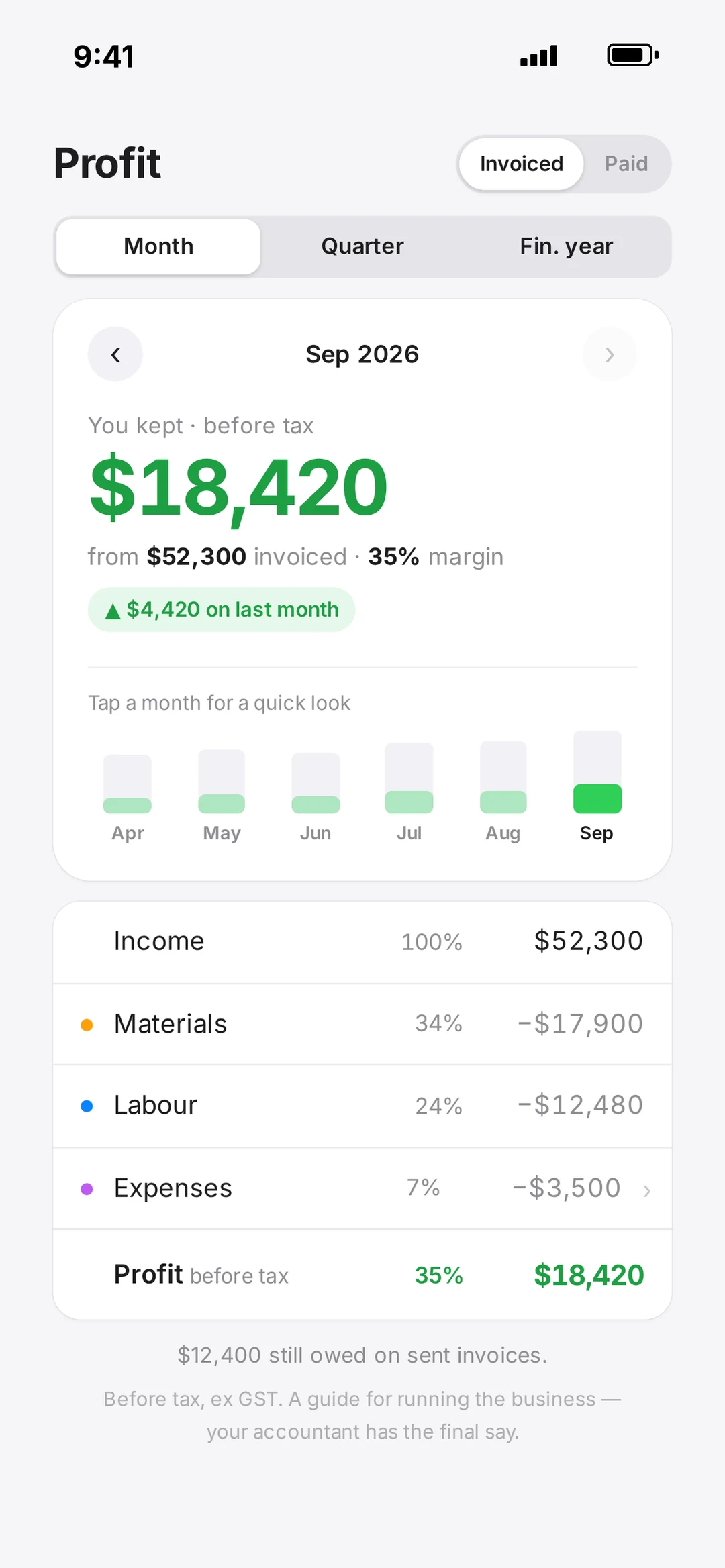
Open Profit
- 1Go to Work → Profit.
- 2Pick Month, Quarter or Fin. year. Use ‹ and › to move back and forward.
- 3Switch between Invoiced (what you’ve billed) and Paid (money that’s actually come in).
Only the account owner can see Profit.
What the numbers mean
The small bar chart shows recent months. Tap one for a quick look, then Open to jump to it. Underneath, robot shows how much is still owed on sent invoices.
- Income — your invoice lines for the period, ex GST.
- Materials — the cost prices on your job lines, plus supplier bills you filed as “All included”.
- Labour — hours from timesheets (or job clock-ons if you don’t use timesheets) × each person’s cost per hour.
- Expenses — your running costs, like the ute, insurance and phone.
- Profit before tax — what’s left, with your margin as a %.
Set your expenses
Until you set your own, Expenses shows in red with typical starter estimates. Replace them with your real numbers.
- 1Tap Expenses.
- 2Change each amount and pick how often it’s paid: Week, Month, Quarter, Year or Once (with a date).
- 3Tap + Add a cost for anything missing. Tap the red − to delete one.
- 4Tap Save.
Make every job’s numbers count
Profit is only as good as the costs behind it. Where robot doesn’t know a cost it estimates, so the more real costs you add, the more accurate it gets.
- Add cost prices to the items in your Products, so every job line carries its real cost. Lines without one are estimated.
- File supplier bills against their jobs. See Get supplier bills onto the right job.
- Set each person’s Cost per hour in Team. People without one are estimated at $45/h.
Profit is before tax and ex GST. It’s a guide for running the business — your accountant has the final say.