How to connect Xero
Link your Xero organisation so your invoices land in your books without retyping.
Connect Xero once from Settings → Integrations and robot sends your invoices across as drafts in your own Xero — your account codes, your approval.
Connect your Xero
- 1Tap Settings, then open Integrations.
- 2Tap the Xero row.
- 3Tap Connect Xero.
- 4Sign in to Xero and allow access when it asks.
- 5You’ll land back in Settings with a green “Xero connected” message. The row now shows Connected and your organisation’s name.
Check the organisation name on the Xero row. If you look after more than one Xero organisation and the wrong one is showing, tap Disconnect and connect again.
Connecting Xero is part of your paid plan and your trial. On the free tier the button reads Upgrade to connect.
What goes to Xero on robot Plan
On robot Plan, your invoices live in robot first. Draft invoices stay in robot — nothing goes to Xero while you’re still working on them.
When you mark an invoice paid, robot sends it to Xero for you. You don’t need to tap anything.
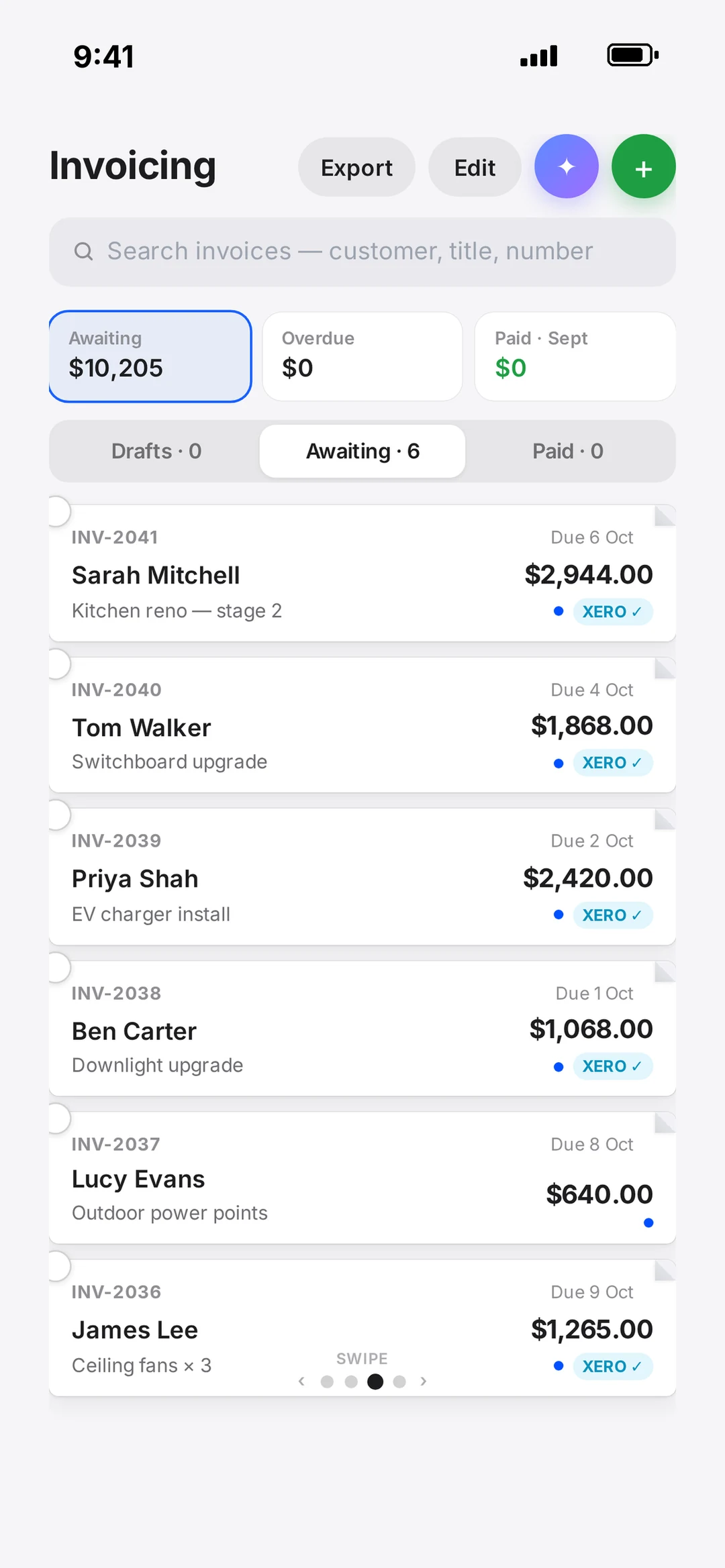
Already sent an invoice and want it in Xero now? Go to Invoicing, tick the round checkbox on the invoice (or several), then tap Sync to Xero in the bar at the bottom. The button only shows for invoices that aren’t drafts and haven’t synced yet.
- XERO ✓ on an invoice means it’s in Xero.
- XERO ✕ means the last try failed. Select it and tap Sync to Xero to try again.
What goes to Xero on robot Quote
On robot Quote, Xero kicks in when a customer accepts a quote. robot creates draft invoices in your Xero — one for each stage of the quote’s payment schedule (for example deposit, rough-in, fit-off).
Each draft carries your quote number in the Reference, so it’s easy to match up. Review the dates and amounts, then approve and send them from Xero.
The customer on the quote needs an email address. Xero contacts are matched by email, so a quote with no customer email won’t create drafts.
How invoices look in Xero
- Everything arrives as a draft, never approved. You stay in control of what goes out from Xero.
- Xero numbers the invoice with your own Xero sequence. robot’s invoice or quote number goes in the Reference.
- The customer is matched to an existing Xero contact by email, or a new contact is created.
- Lines use a default sales account. If your chart of accounts is set up differently, just recode the draft in Xero before you approve it.
Undoing “paid” on an invoice that’s already synced won’t change Xero. robot warns you first — if you go ahead, fix the payment in Xero too so your books match.
Bring your Xero customers across
- 1Go to Customers.
- 2Tap the Xero button at the top.
- 3Check the list of new contacts, then import them. Anyone already in your customer list is skipped.
Disconnect or reconnect
To stop syncing, open Settings → Integrations → Xero and tap Disconnect.
If the row says Needs reconnect, the connection has stopped working — usually because access was removed inside Xero. Tap Reconnect Xero and sign in again.