How to build your price book
Load your products, labour and kits into the Pricing Library so every quote is a few taps.
Your Pricing Library is your price book. Set your prices once and every quote, job and auto-quote pulls from it — no more looking up the same numbers at 9pm.
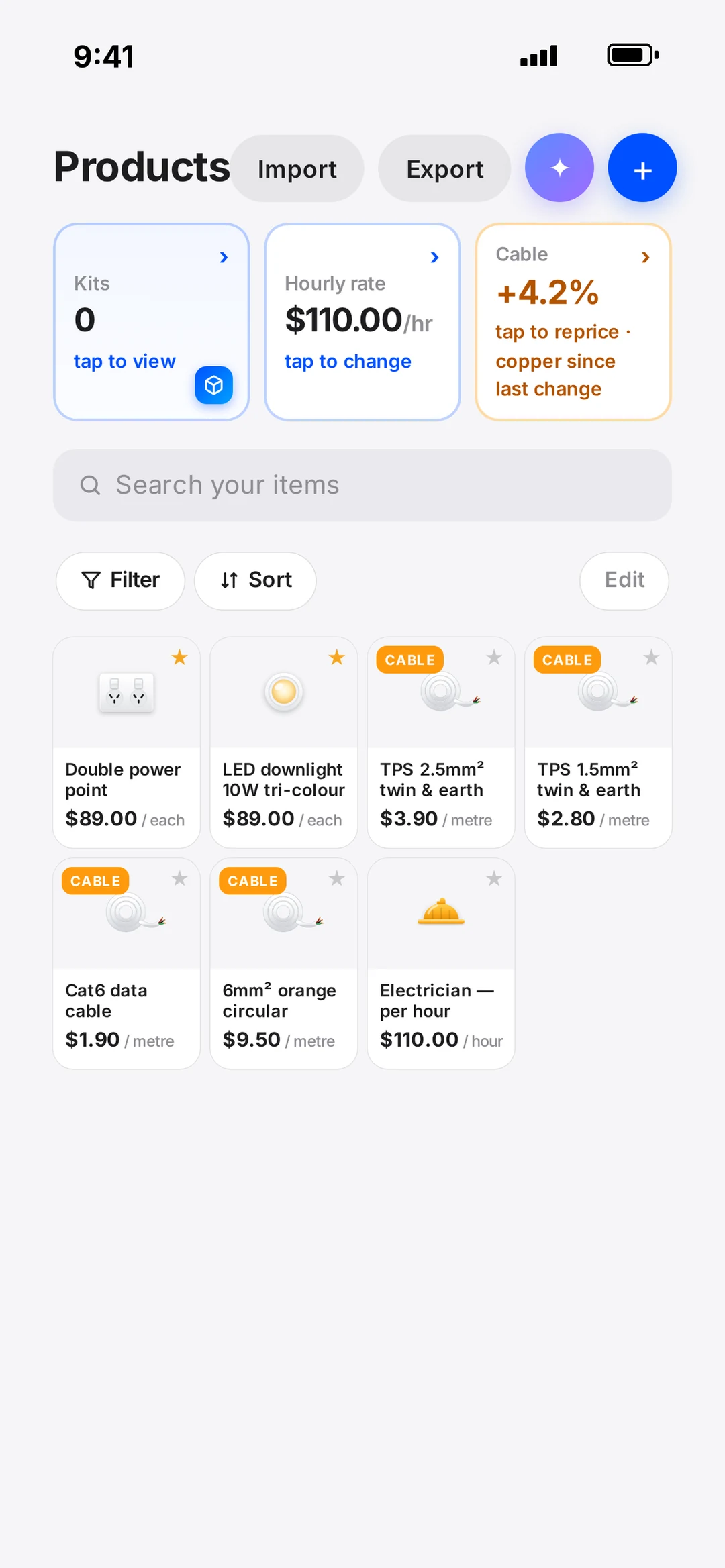
Find your Pricing Library
On a computer it’s Pricing Library in the left-hand menu. On your phone, open the Work menu and tap Products.
You can also get there from Quotes — tap the ⋯ button next to the + and pick Pricing Library.
Add a product or labour item
- 1Tap the blue + (Add item) at the top of the Products page.
- 2Under Type, pick Product, Labour or Kit.
- 3Give it a Name (e.g. Downlight — supply + install) and a price.
- 4Add a Description if you like — it’s the detail that goes onto the customer’s quote line.
- 5Pick a Section so it’s grouped with similar items, and add a photo if you have one.
- 6Tap Add to library.
Tap Hourly rate on the Products page to set what you charge per hour. Kits priced on your rate follow it automatically, so changing it reprices those kits everywhere.
Build a kit
A kit bundles products and your labour into one line on the quote — handy for things you quote the same way every time.
- 1Tap + and set the Type to Kit.
- 2Add the products that go in it under Products in this kit.
- 3Set the labour, then choose a Kit price: Products + your rate (works it out for you) or Fixed price (one number, products and labour included).
- 4Save it. Kits show with a KIT badge, and you can find them fast with the Kits filter.
Import your price list from Excel or CSV
- 1On the Products page, tap Import.
- 2In Excel, save your price list as a CSV (File → Save As → CSV).
- 3Tap Choose CSV file and pick it. Not sure of the layout? Tap Download a template CSV first.
- 4Check each row. Rows that match one of your items update its price; anything else is added as a new product.
- 5Confirm the import.
Rows missing a name or price are skipped. Item exports from Xero and ServiceM8 work too.
Keep it tidy
- Use the search bar, Filter and Sort to find items quickly.
- Export downloads your whole list as a CSV.
- Archive items you don’t use any more — turn on Show archived under Sort if you need one back.