How to set up your online booking link
Get your own robotplan.com.au/book link, pick your hours and services, and share it on Instagram, Facebook, your website or the van.
Customers can book you from your Instagram bio at 9pm without ringing you. The request comes into robot Plan, and it becomes a job with one tap.
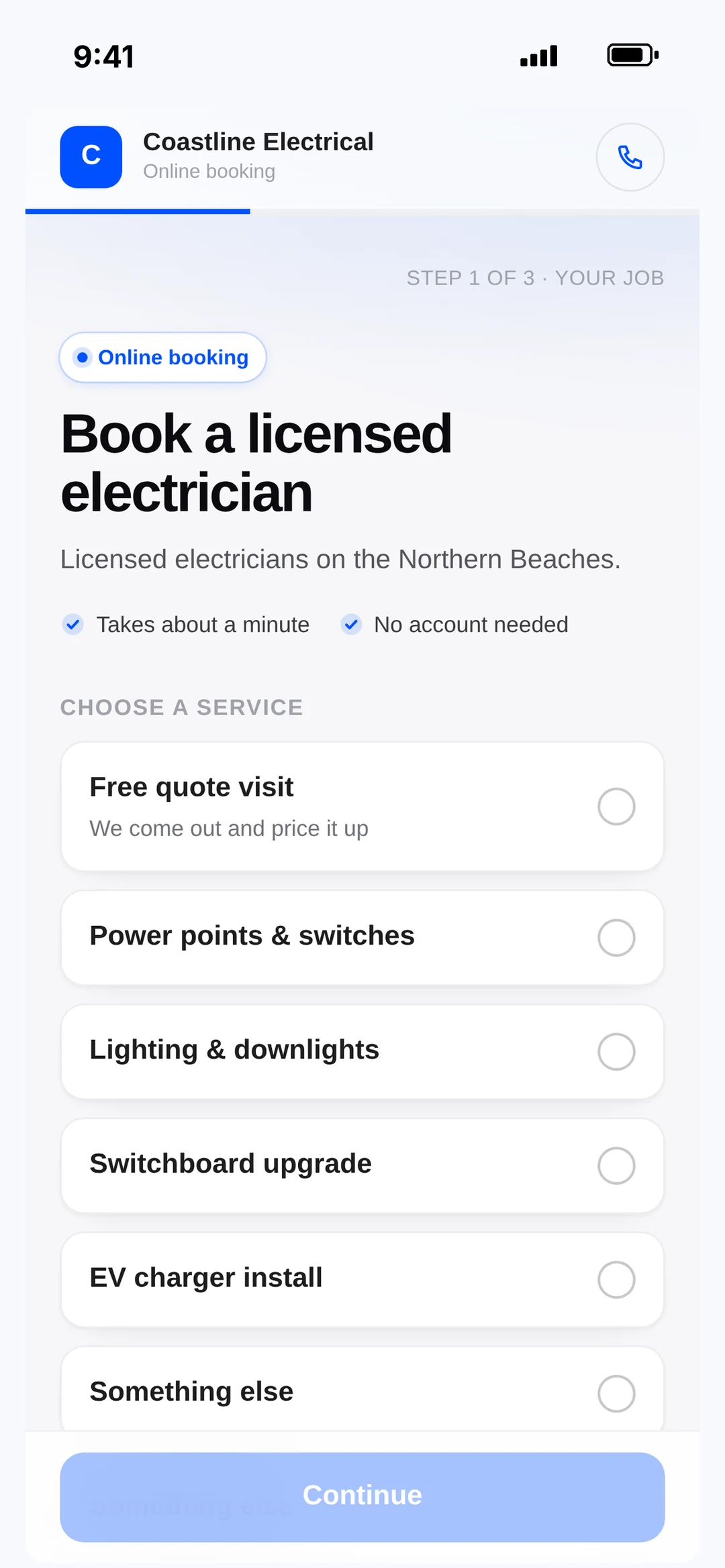
Turn on your link
- 1Go to Settings and open Online booking.
- 2Under Your link, type the name you want, e.g. your business name. It shows straight away if the name is free. If it’s taken, you’ll get a suggestion.
- 3Under Your booking form, add the services customers can pick from (e.g. “Free quote visit”). If you leave it empty, customers just tell you what they need. Something else is always added as an option.
- 4Choose whether to ask for the job address, and pick a colour.
- 5Set your Timing, Bookable hours and how customers book (see below).
- 6Add a Page title and a short message if you want one.
- 7Tap Switch on my booking link.
Only the owner or a manager can change these settings.
Choose how bookings come in
- Don’t ask for a time: customers send the job, and you get in touch to arrange a time.
- Preferred date & time: customers pick a day and time that suits them. They’re told you’ll confirm it first.
- Let them pick a time: customers choose from your free times. Then pick I confirm each booking or Book them straight in.
Under Bookable hours, set your days and hours, how long each booking is, and the soonest someone can book. Times already taken by jobs on your calendar are hidden automatically.
Confirm booking requests
When someone books, you get a notification. Your Jobs page shows a blue banner, e.g. “1 new booking to confirm”. Tap it to open Bookings.
- 1Under To confirm, check the job details and the time they asked for. Change the time if you need to.
- 2Use Call, Text or Email if you want to talk to them first.
- 3Tap Confirm & book in. robot Plan creates the job and sends the customer a confirmation.
- 4Or tap Decline. No message goes out, so give them a call if you need to.
If you picked Book them straight in, bookings go straight into your jobs and calendar and show as Auto-booked under Recent. You don’t need to confirm them.
What the customer gets
When a request comes in, the customer gets a “booking request received” email and text. When it’s booked (by you, or straight in), they get a “you’re booked in” email and text. The email only goes if they gave an email address, and the text only goes if they gave a phone number. You can change the wording in Settings → Templates.